ExactFind can check your plugin files against the released version, to spot injected code, missing files or an update that didn't finish. It compares each installed file with the published checksums for that version.
The check only reports. It never changes or deletes a file, and it doesn't affect your licence.
Go to ExactFind > Settings > Updates and files, then Plugin files.
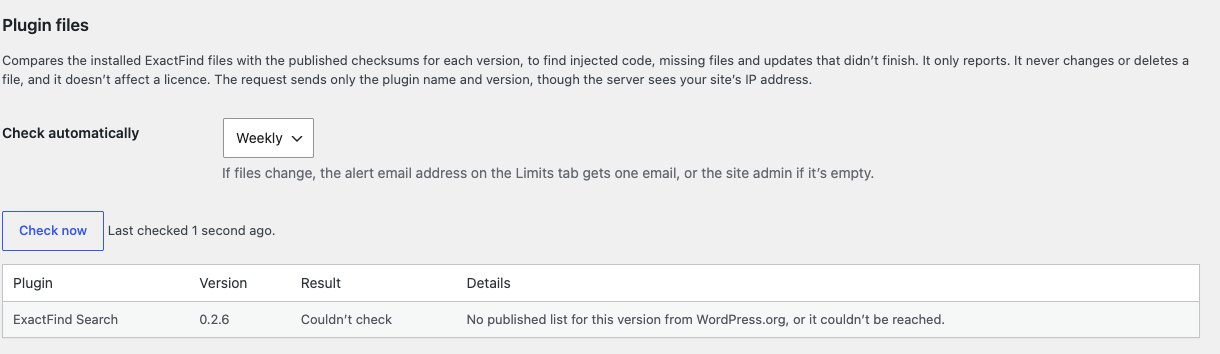
Run a check
Click Check now. The result shows straight away, with the time of the last check.
Check automatically
Choose how often under Check automatically: Off, Daily, Weekly or Monthly. Weekly is the default. Click Save Changes.
Read the results
| Result | Meaning |
|---|---|
| All files match | Every file is as released |
| Files don't match | Some files are different. The details list them |
| Couldn't check | There's no published list for this version yet, or the server couldn't be reached |
For a plugin with differences, open each list to see the files:
| List | Meaning |
|---|---|
| Added code | Code files that aren't part of the release. Check these first, as injected code usually shows here |
| Changed | Files that are different from the release |
| Missing | Files from the release that aren't on your site |
| Other added files, such as logs (no alert) | Files that aren't code, which are usually harmless. These don't send an alert |
When files don't match
If a check finds a problem, ExactFind:
- Sends one email to the Alert email on the Limits tab, or the site admin if that's empty.
- Shows a notice on the Dashboard, the Plugins screen and the ExactFind screens.
- Adds a result in Tools > Site Health.
Fix it
If you didn't change the files yourself, reinstall the plugin from a fresh download:
- ExactFind Search: download it again from WordPress.org, or from wherever you first got it.
- ExactFind Knowledge: use Download the latest version on your account page.
Then check the rest of the site. Files that someone else changed can be a sign the site has been compromised, so check other plugins, your themes and your admin users, and change your passwords.
An update that stopped partway can also leave changed or missing files. Reinstalling the same version fixes that.
Couldn't check
"Couldn't check" isn't a problem with your site. It usually means that version's checksums haven't been published yet, for example straight after a release. ExactFind Search's checksums come from WordPress.org, so a Search version that isn't published there can't be checked. Try again later.
What's sent
The check fetches checksums from WordPress.org for ExactFind Search, and from exactfindai.com for ExactFind Knowledge. It sends only the plugin name and version, though those servers see your site's IP address. It works without an active licence.