AI answer source links show visitors which articles an answer came from, so they can check the facts. You can also show a disclaimer under answers.
Go to ExactFind > Settings > Answers. Both are on by default, and changes apply as soon as you save.
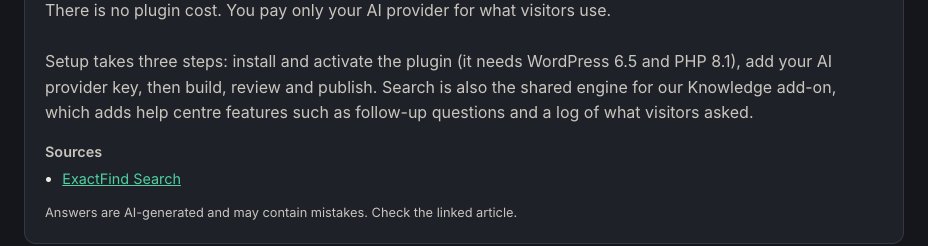
Source links
Tick Show links to the articles used under Source article links. An answer can link to up to three articles.
An answer can also link an article it didn't read in full. If the answer gives an email address, web address or phone number that appears in only one other index entry, that entry is linked too, so visitors can see where it came from. Contact details that appear in many entries, such as a support address in every article's footer, don't add a link.
With ExactFind Knowledge, an answer from a PDF links to the page of the PDF it used.
When no links show
Links only show when the answer came from your articles. You won't see any when:
- Your site doesn't cover the question.
- The assistant asks the visitor for more detail.
Disclaimer
Tick Show a disclaimer and edit the text below it. The default is:
Answers are AI-generated and may contain mistakes. Check the linked article.Like the links, the disclaimer only shows under answers that came from your articles.
Name the AI platform
Use {ai_platform} in the text to show the platform giving answers. It shows Claude, ChatGPT or your Service name for an OpenAI-compatible service, and it updates if you change platform.
Answers are written by {ai_platform} and may contain mistakes.If you use a page cache, clear it after you change the text.