The AI instruction prompt lets you add your own guidance to how answers are written. It's added to ExactFind's built-in rules, so you only need to write what's specific to your site.
Go to ExactFind > Settings > Answers and use Instruction prompt.
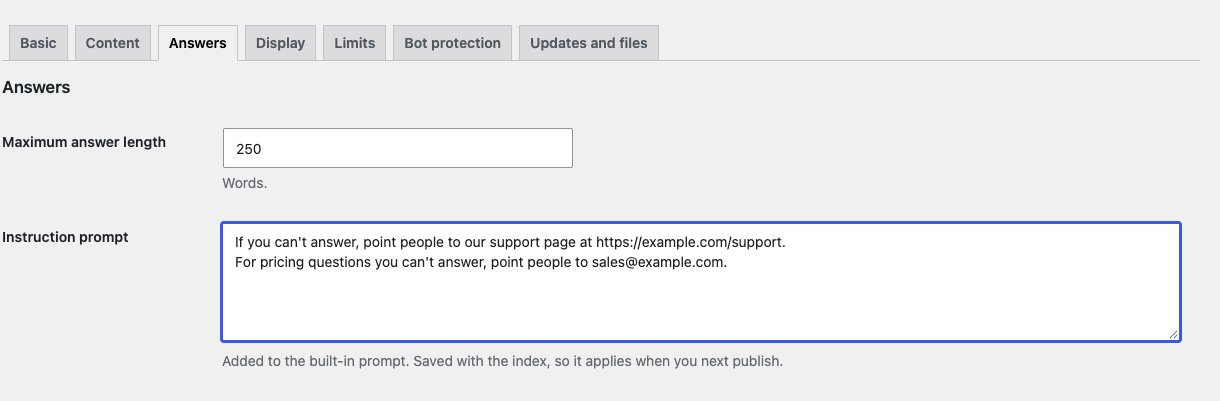
Examples you can copy
Change the details to suit your site, and use only the ones you need.
A support contact. Gives people somewhere to go when the answer falls short.
If you can't answer, point people to our support page at https://example.com/support.A sales contact. Sends pricing questions to the right place.
For pricing questions you can't answer, point people to [email protected].Conditions on security answers. Stops a setting-dependent answer sounding absolute.
When answering security questions, state which settings the answer depends on.Product wording. Keeps your own terms consistent.
Always say send, never message.Spelling. Sets the spelling for answers.
Use Australian spelling.Limits. Keeps answers away from topics you don't want covered.
Don't compare us with other products.Keep it short
A few short lines work better than a long list. The prompt is sent with every question, so a long one also uses more tokens.
What it can't do
The prompt can't override the built-in rules. ExactFind still answers only from your articles, so the prompt isn't the place to add facts. If something's missing, add it to an article, then build and publish the index.
When it applies
The prompt is saved with the index, so changes apply when you next publish the index. Publish, then ask a question that should show the change.