When you publish the index, ExactFind makes a new version from your approved entries, and visitors' answers start using it straight away.
Publish a new version
- Go to ExactFind > Index.
- Check your entries are approved.
- Click Publish approved entries.
Watch for this warning
Publishing only uses approved entries. If an entry is live now but isn't approved, it drops out of the index when you publish, and the page warns you first.
This often happens after you edit an entry or an article changes, because both send the entry back to draft. Approve it before you publish if you want it to stay.

When to publish
Publish after you:
- Approve new or changed entries.
- Remove an entry.
- Change the instruction prompt, answer voice or maximum answer length.
- In Knowledge, change the assistant name or tone.
- Update ExactFind, so any changes to its built-in answer rules take effect.
Those settings are saved into the published version, so they don't apply until then.
Roll back
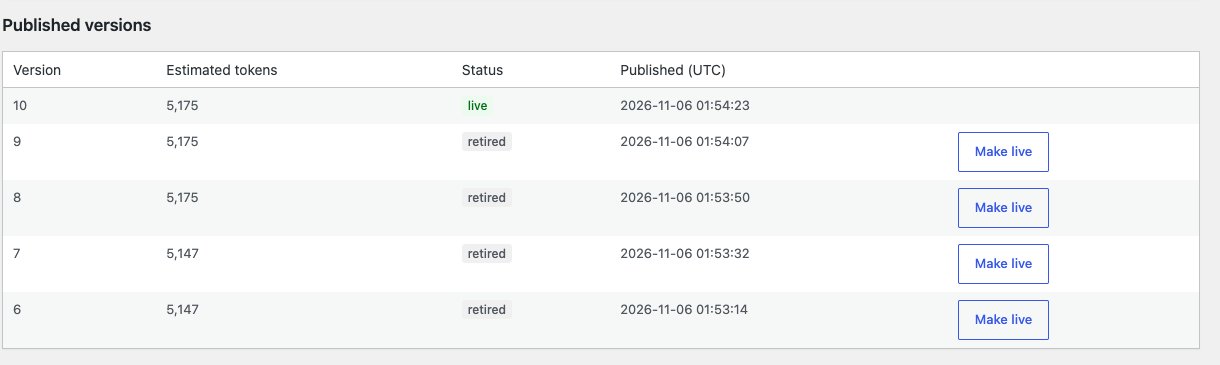
If something goes wrong, go to Published versions and click Make live on an earlier version. This is instant and doesn't use your AI provider. ExactFind keeps the last five versions.
Rolling back doesn't bring excluded content back. Each article is checked again when a question is asked, so anything now unpublished or excluded stays out.
Conversations in progress
In ExactFind Knowledge, a chat already under way stays on the version it started with. New chats use the new version.