You can edit an index entry when its summary misses the point or leaves out the words people use. You can also have it rewritten, or take it out of the index.
All of this is under ExactFind > Index, in the Review table. Nothing reaches visitors until you publish the index.
Edit an entry
- Hover over the title and click Edit.
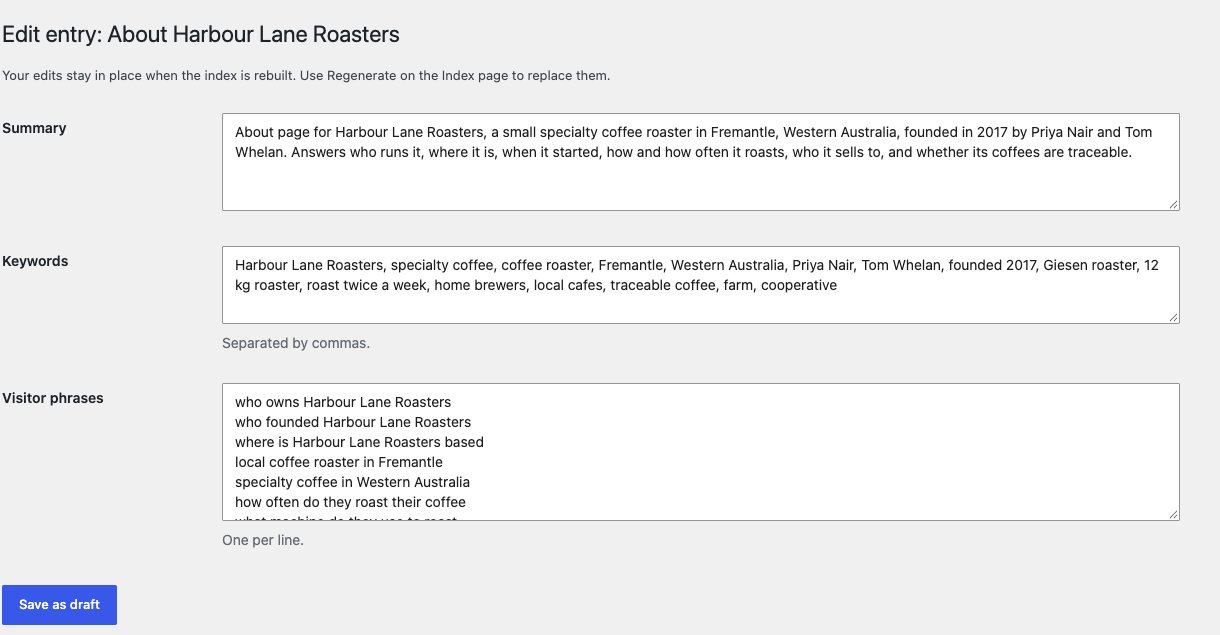
- Change the Summary, Keywords or Visitor phrases. Separate keywords with commas, and put each phrase on its own line.
- Click Save as draft.
- Approve the entry and publish.
The entry is labelled Edited. If it was live, it leaves the index unless you approve it before you publish.
What happens at the next rebuild
Your edits are kept. If the article itself changes, ExactFind doesn't rewrite the entry. It goes back to draft with your wording, so check it still fits the article.
Regenerate an entry
Regenerate asks your indexing model to write the entry again from the current article.
- Tick up to five entries.
- Choose Regenerate from the Bulk actions menu above the table, then click Apply.
- Approve the new entries and publish.
This replaces any edits you've made, and it uses tokens.
Remove an entry
Tick the entry, choose Remove from index from Bulk actions and click Apply. ExactFind asks you to confirm. The entry leaves the live index when you next publish, and rebuilds leave it out.
To bring it back, tick it and apply Restore. It returns as a draft.
To keep a whole group of items out, use exclusions instead. See How to Exclude Pages From AI Search in WordPress.