Your ExactFind Knowledge licence key turns on Knowledge's features and its updates. Activate it on each site that uses Knowledge.
Find your key
Your key starts with EF-. It's in the email you got when you bought Knowledge, and on your account page.
Activate it
- Go to ExactFind > Settings > Knowledge.
- Scroll down to Licence.
- Paste your key into Licence key.
- Click Activate licence.
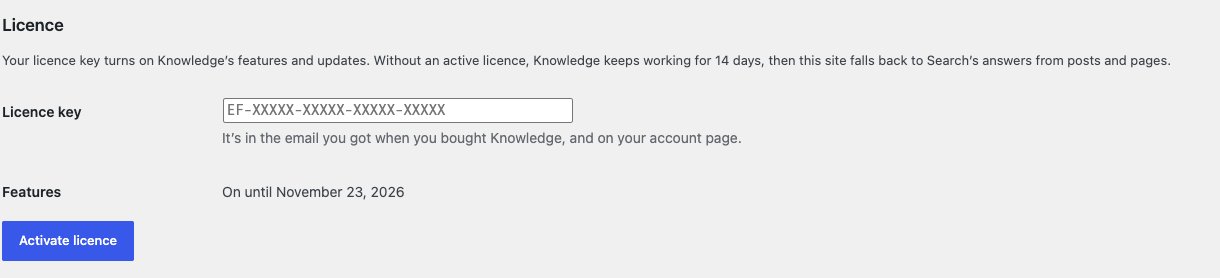
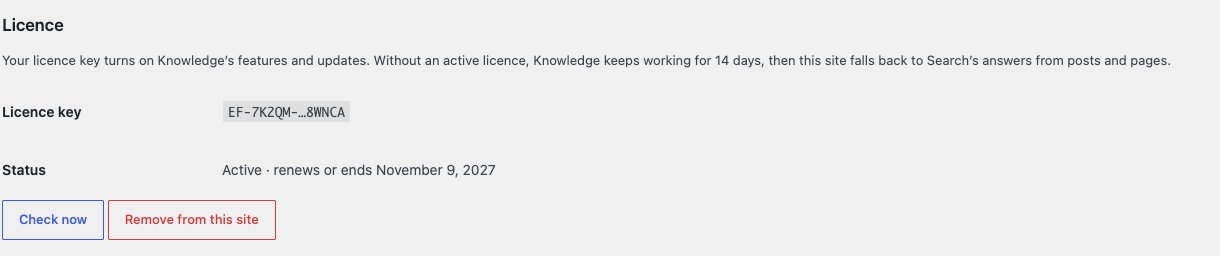
You'll see "Licence activated. Updates are on." The Status row then shows Active, with the date the licence renews or ends.
Without a licence
Knowledge works for 14 days from the day you first install it, without a key. A notice on the Plugins screen, the dashboard and the ExactFind screens shows the date its features switch off.
If the licence expires, is cancelled, or the site is over the licence's site limit, a new 14-day period starts. The notice and the Features row show the date.
After 14 days without an active licence:
- Chat, custom post types, documents, hand-off and the question log switch off.
- Visitors get single answers from your posts and pages only, as with ExactFind Search.
- Updates stop.
- Your settings, index entries and question log are kept.
Everything comes back as soon as the licence is active again, with no need to rebuild the index.
If our licence server can't be reached, nothing changes. Only a clear answer from the server that the licence isn't active starts the 14 days.
Check the licence
ExactFind checks your licence once a day. To check straight away, for example after you renew, click Check now in the Licence section.
Move the licence to another site
- On the old site, click Remove from this site and confirm.
- Activate the key on the new site.
Deleting ExactFind Knowledge also frees the site. You can remove a site from your account page too, if you no longer have access to it.
Removing the licence switches Knowledge's features off on that site straight away, unless the site is still in its first 14 days.
Local and staging sites
Copies of your site on local and staging addresses don't use up a site on your licence. These include:
localhost, and addresses ending in.local,.localhostor.test.- Addresses starting with
staging.,stage.,dev.ortest., or with a hyphen, such asstaging-example.com.
Messages you might see
| Message | What to do |
|---|---|
| "That licence key wasn't accepted." | Check the key against your email, including the EF- at the start |
| "This site is over your licence's site limit." | Remove a site you no longer use from your account page, or upgrade your plan |
| "Your ExactFind Knowledge licence has expired or isn't active on this site." | Renew from your account page, then click Check now |
| "The licence server couldn't be reached. Try again shortly." | Wait a few minutes. If it keeps happening, check your host allows outbound requests to exactfindai.com |
What's sent
The licence check sends only the licence key, your site address and the plugin version to exactfindai.com. See Does AI Search Send Data Off Your WordPress Site?