The Updates and files tab shows which ExactFind plugins you have, whether an update is waiting, and what's in it. Go to ExactFind > Settings > Updates and files.
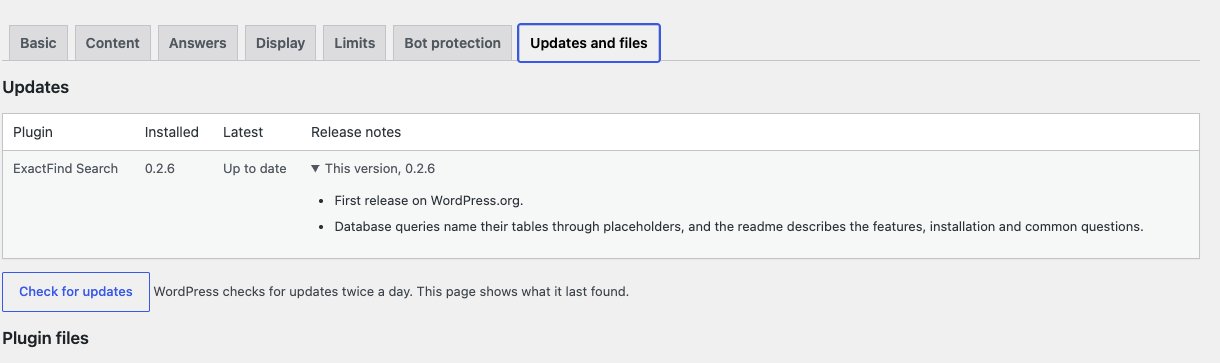
The Updates table
| Column | What it shows |
|---|---|
| Plugin | ExactFind Search, and ExactFind Knowledge if you have it |
| Installed | The version on your site |
| Latest | Up to date, or the newer version and a link to update it on the Plugins screen |
| Release notes | What's new in the newer version, and the notes for the version you have |
Open What's new in to read about an update before you install it. This version lists what's in the version you're running.
Check now
WordPress checks for updates twice a day, and this tab shows what it last found. To check straight away, click Check for updates. It opens WordPress's own update check.
Install an update
Click Update on the Plugins screen, then update as you would any other plugin. If you use both plugins, update ExactFind Search first. Finish any index build before you update.
You can also update from a zip file. See Install the WordPress AI Search Plugin in Five Minutes.
ExactFind Knowledge updates need a licence
ExactFind Knowledge updates come from exactfindai.com, and only reach sites with an active licence. Without one, the tab says "Updates need an active licence, on the Knowledge tab."
If the tab shows a newer version but says "The download isn't available to this site", the licence isn't active on this site. Activate it, then click Check for updates.
Plugin files
The lower half of the tab checks that your installed files match the released version. See Check Your Plugin Files for Unexpected Changes.