This guide shows you how to install the WordPress AI search plugin from a zip file, and how to update it later.
Install ExactFind Search
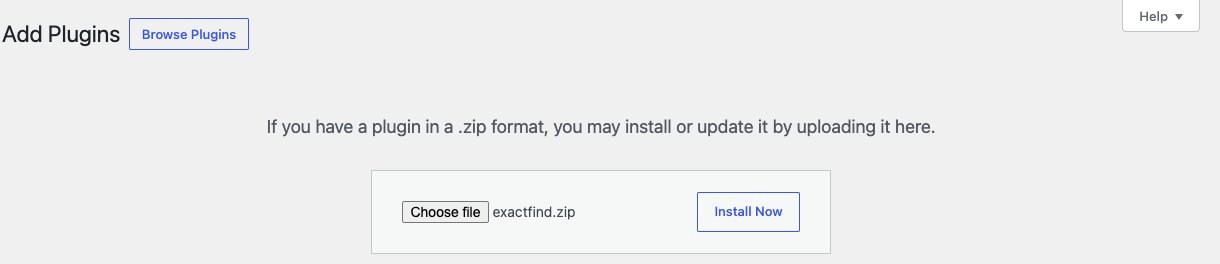
- Go to Plugins > Add New > Upload Plugin.
- Choose
exactfind.zip, then click Install Now. - Click Activate.
You don't need to extract the zip file. WordPress does that for you.
Install ExactFind Knowledge
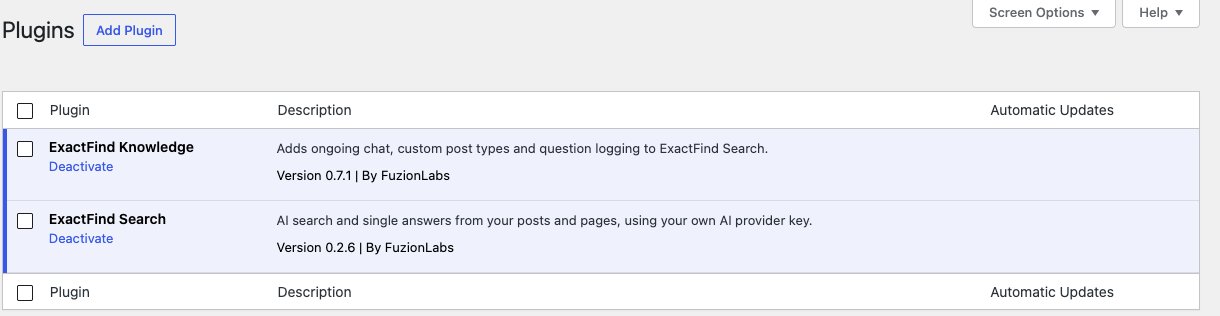
If you have the paid plugin, repeat those steps with exactfind-knowledge.zip. Install Search first, because Knowledge needs it to be active.
If Search isn't active or is out of date, Knowledge shows a notice at the top of your admin pages and stays switched off until that's fixed.
Then activate your licence on the Knowledge tab, so updates reach you and Knowledge's features stay on after the first 14 days.
Update to a new version
When WordPress finds an update, it shows on the Plugins screen and on the Updates and files tab in ExactFind's settings, with notes on what's new. ExactFind Knowledge updates come from exactfindai.com and need an active licence. Finish any index build that's running, then update from the Plugins screen as for any other plugin. See Check for ExactFind Updates and Read Release Notes.
To update from a zip file instead:
- Finish any index build that's running.
- Go to Plugins > Add New > Upload Plugin and upload the new zip.
- Click Replace current with uploaded.
Your settings, index and API key are kept. If you use both plugins, update Search first, then Knowledge. A new Knowledge version can need a newer Search, and it stays switched off with a notice until Search is updated.
Remove ExactFind
Deactivating the plugin keeps your data. Deleting it removes its settings, index and usage data. Deleting ExactFind Knowledge also frees this site from your licence, so you can use it on another site.