You can match your theme colours by setting six CSS variables. There are no colour settings in the plugin, so all of this goes in your theme's CSS or under Appearance > Customize > Additional CSS.
The variables
| Variable | Used for | Default |
|---|---|---|
--exactfind-accent | Button background, and the visitor's messages in chat | #1d4ed8 |
--exactfind-accent-text | Text on the accent colour | #fff |
--exactfind-border | Borders on the input and the widget panel | #d1d5db |
--exactfind-muted | The disclaimer text | #6b7280 |
--exactfind-surface | Background of the floating widget panel | #fff |
--exactfind-text | Text in the search box | Inherited from your theme |
Copy this example
.exactfind,
.exactfind-float {
	--exactfind-accent: #0f766e;
	--exactfind-accent-text: #fff;
	--exactfind-border: #cbd5e1;
	--exactfind-muted: #64748b;
	--exactfind-surface: #fff;
	--exactfind-text: #1e293b;
}
Set the variables on .exactfind and .exactfind-float, as shown. The plugin's defaults are written so your theme wins, whichever stylesheet loads last. Setting them on the plugin's own elements also beats any general rules in your theme.
Always set --exactfind-text if you change --exactfind-surface. The widget panel has its own dark text, so a dark panel needs a light text colour.
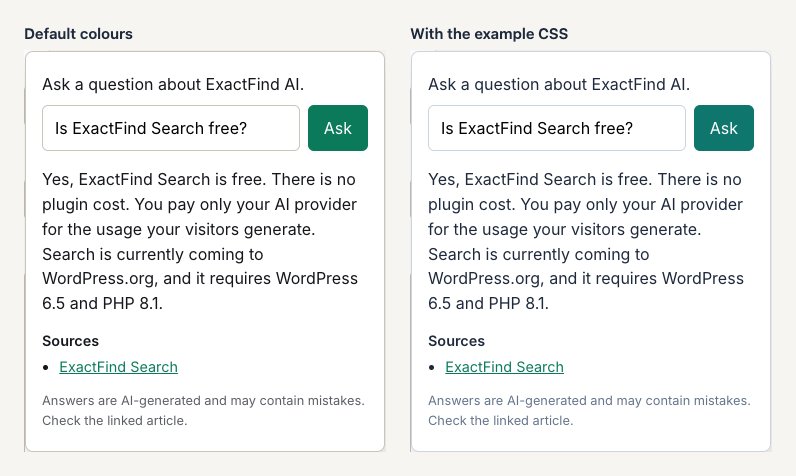
Dark mode
If your theme follows the visitor's device setting:
@media (prefers-color-scheme: dark) {
	.exactfind,
	.exactfind-float {
		--exactfind-accent: #2dd4bf;
		--exactfind-accent-text: #042f2e;
		--exactfind-border: #475569;
		--exactfind-muted: #94a3b8;
		--exactfind-surface: #0f172a;
		--exactfind-text: #e2e8f0;
	}
}
If your theme uses a switch instead, put the same variables under the selector it uses, such as .dark .exactfind. Check both modes, including the question box, which takes its colours from your theme.
Class names
Use these to target parts of the search box from your theme.
Search box
| Class | Element |
|---|---|
.exactfind | The search box |
.exactfind__welcome | The welcome text |
.exactfind__form | The form around the question box and button |
.exactfind__label | The label around the question box |
.exactfind__input | The question box |
.exactfind__button | The ask button |
.exactfind__result | The area that holds answers |
.exactfind__answer | An answer |
.exactfind__sources | Source links |
.exactfind__disclaimer | The disclaimer |
Floating widget
| Class | Element |
|---|---|
.exactfind-float | The widget, which holds the button and the panel |
.exactfind-float--left or .exactfind-float--right | The corner it sits in |
.exactfind-float__toggle | The widget button |
.exactfind-float__panel | The panel that opens |
.exactfind-challenge | The Turnstile check, when bot protection is on |
Chat, with Knowledge
| Class | Element |
|---|---|
.exactfind--top | A chat with the input at the top |
.exactfind--bottom | A chat with the input at the bottom |
.exactfind__thread | The conversation |
.exactfind__turn | One question and its answer |
.exactfind__message--user | The visitor's question |
.exactfind__suggested | The row of suggested questions |
.exactfind__chip | A suggested question, and the Yes and No buttons |
.exactfind__new | The New chat button |
.exactfind__feedback | The "Was this helpful?" row |
.exactfind__talk | The Talk to a person button |
.exactfind__handoff-offer | The offer to talk to a person under an answer |
.exactfind__handoff | The hand-off form |
.exactfind__handoff-done | The message after a hand-off is sent |
See Choose a Chat Layout That Suits Your Page for how the two layouts behave.
What not to change
Change colours, fonts, spacing and borders. Leave the layout to the plugin.
- Don't change the markup. The chat and widget scripts look for these elements, so moving or replacing them can stop the search box working.
- Don't move the widget with CSS. Its corner and distances come from Settings > Display, which sets
--exactfind-float-xand--exactfind-float-y. Change the setting instead. - Don't give the widget panel a fixed height when the chat has the input at the bottom. The plugin works out the panel and conversation heights from the screen height, so the conversation scrolls and the question box stays in view.
Clear caches after a change
After a change, clear your page cache and any CSS optimisation plugin. If an optimisation plugin removes unused CSS, read Use Caching and Optimisation Plugins With ExactFind first, because it can strip the chat styles.