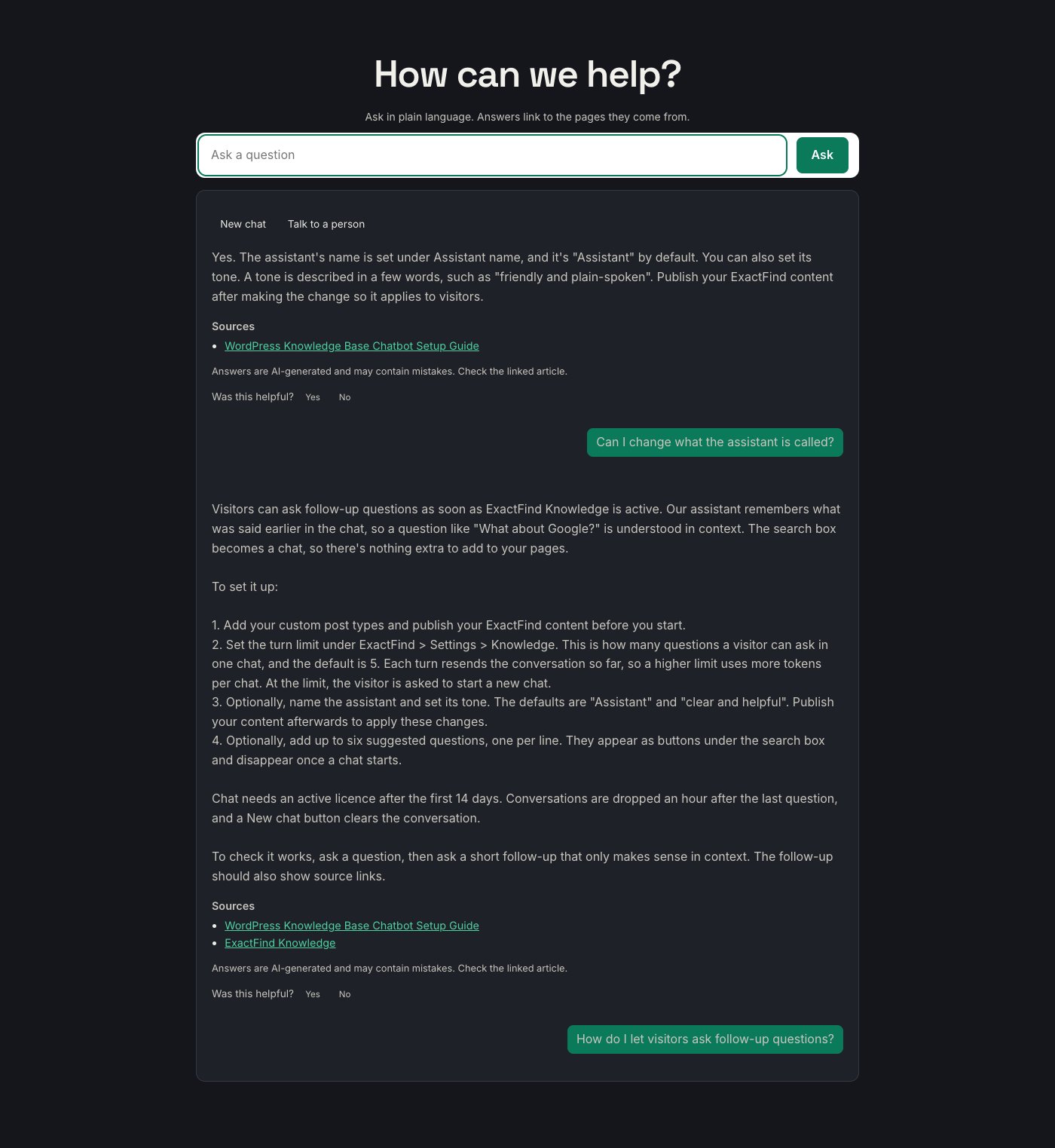
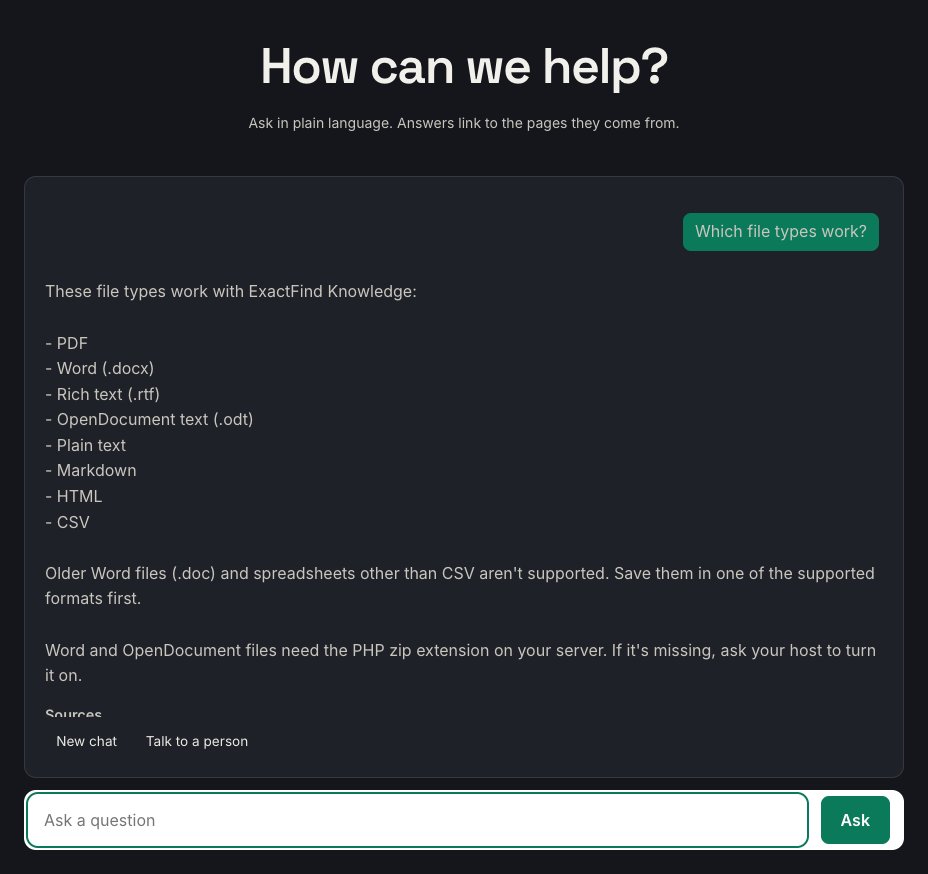
ExactFind Knowledge has two chat layouts. Choose the chat layout that suits your page, as it changes where the question box sits and which way the conversation runs.
Go to ExactFind > Settings > Knowledge. Chat layout sets the search box you add with the shortcode or block, and Widget layout sets the floating widget.

The two layouts
| Layout | How it works | Best for |
|---|---|---|
| Input at the top, newest messages first | The question box stays at the top, and each new answer appears under it | A help page or a search-style box in your content |
| Input at the bottom, in a scrolling panel | Messages run down a panel, with the question box underneath | A dedicated chat area |
The top layout is the default for Chat layout.
The floating widget
Widget layout has the same two layouts, plus Same as the chat layout, which is the default. Choose a layout here if your pages and the widget need different ones. For example, you might use the top layout on a help page and the bottom layout in the widget's small panel.
How to choose
Ask a question, then a follow-up, and watch what moves.
- If the page has a lot below the box, the top layout means visitors don't need to scroll down to the next answer.
- If the box sits in a fixed area, the bottom layout works like most chat apps.
Apply a change
Click Save Changes on the Knowledge tab. It applies straight away, and you don't need to publish the index. If you use a page cache, clear it first.