Chatbot human handoff lets a visitor pass their chat to a person on your team. The conversation goes with it, along with a short summary, so the visitor doesn't have to repeat themselves. It goes by email, to a webhook, or both. This needs ExactFind Knowledge.
How it works for visitors
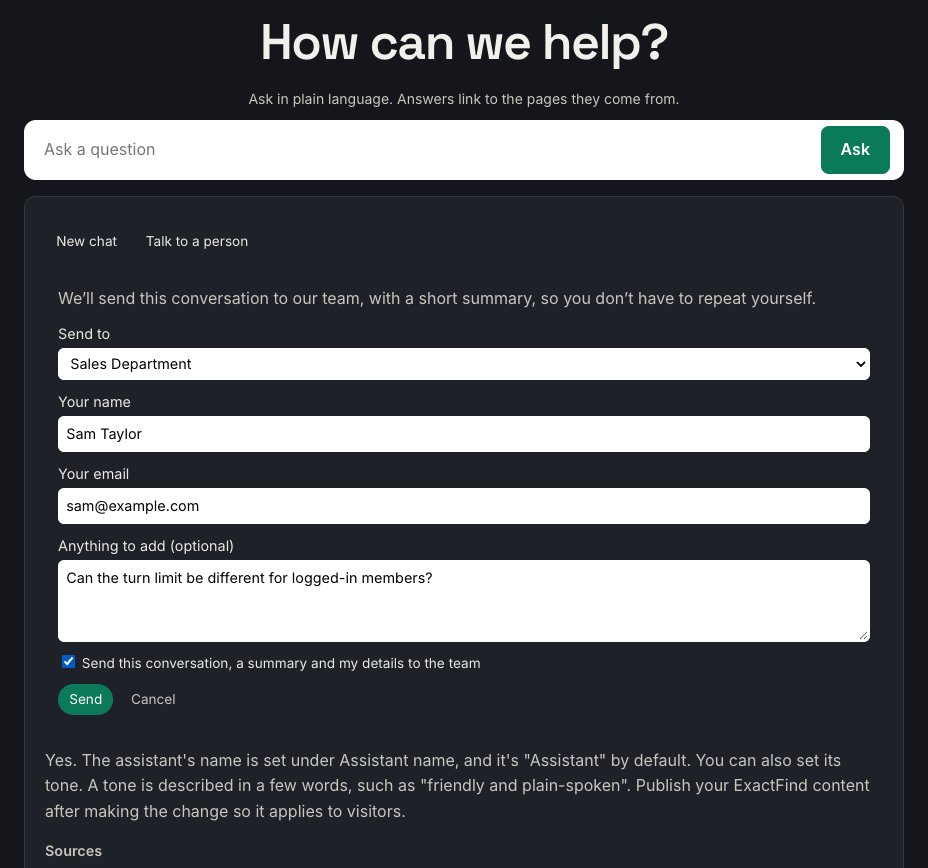
- After their first question, the visitor sees a Talk to a person button. It's also offered under an answer your site couldn't give, and when they ask to speak to a person.
- They click it. If you have more than one team, the form suggests one under Send to, and they can change it.
- They enter their name and email, and anything they want to add.
- They tick the box to agree to send the conversation, then click Send.
- They see "Sent. The team will reply by email.", followed by that team's reply note.
Set it up
- Go to ExactFind > Settings > Knowledge.
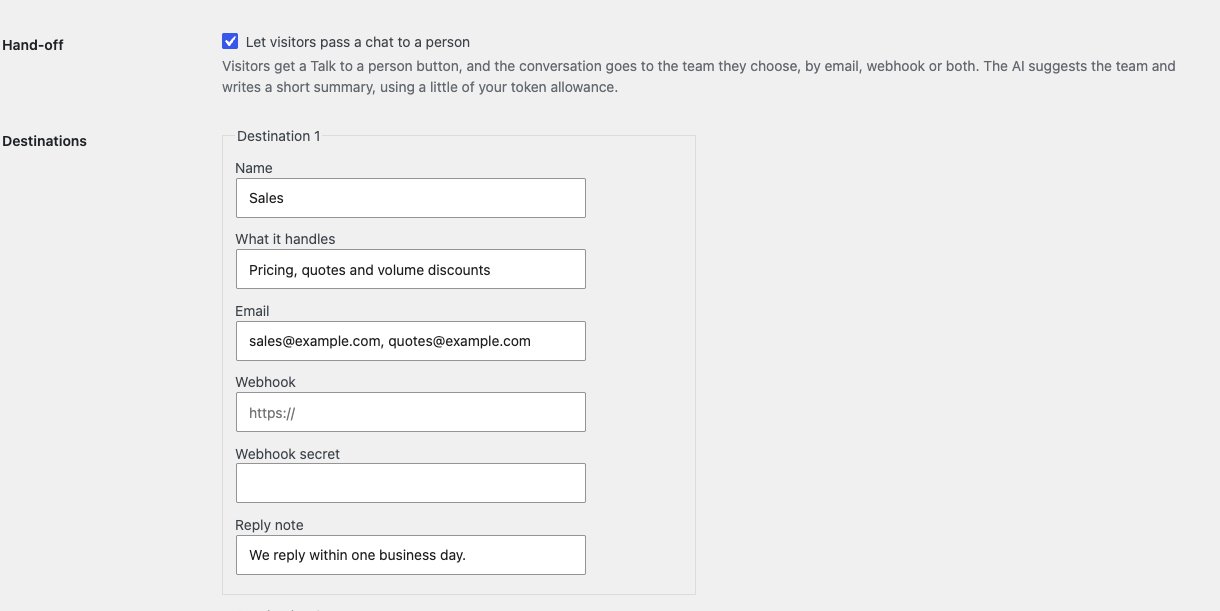
- Under Hand-off, tick Let visitors pass a chat to a person.
- Fill in a Destination for each team, as below.
- Click Save Changes on that tab.
Hand-off is on once the setting is ticked and at least one destination is saved.
Destinations
You can have up to six, such as Support, Sales, Pre-sales or Accounts. Each has:
| Field | What it's for |
|---|---|
| Name | What visitors see, such as Sales |
| What it handles | One line, such as "Pricing, quotes and volume discounts". It's used to suggest the right team |
| One or more addresses, separated by commas. Up to five | |
| Webhook | An optional https:// address to send the hand-off to as JSON |
| Webhook secret | Optional. Used to sign the webhook |
| Reply note | Shown to the visitor after sending, such as "We reply within one business day" |
Each destination needs a name and an email address, a webhook or both. A new empty row appears once you've saved one. To remove a destination, empty its row and save.
Write What it handles clearly, because the AI uses it to pick a team. If nothing fits, the visitor chooses.
What your team gets
Each hand-off includes:
- The visitor's name, email and note.
- A short summary of what they want and what the assistant couldn't answer.
- Every question in the chat, with its answer and sources.
- The page they were on, your site and the time.
The summary is written by your AI model, so the email labels it "AI summary (unverified, check it against the conversation below)". Always read the conversation before acting on it.
By email
The email is plain text, sent through your site's normal WordPress mail. The subject has your site name, the team and the visitor's first question. The visitor's address is set as reply-to, so you can reply to them directly.
If your site's mail doesn't send reliably, use an SMTP plugin, or add a webhook as well.
By webhook
The webhook gets the same details as JSON, so you can send hand-offs to a helpdesk, a CRM or a chat tool through n8n, Zapier or Make.
- The address must use
https, on port 443 or 8080. A developer can allow plainhttpwith theexactfind_handoff_allow_httpfilter, but hand-offs hold personal details, so we don't recommend it. - Each request has an
X-ExactFind-Timestampheader. - With a secret, there's also an
X-ExactFind-Signatureheader. It holdssha256=followed by the HMAC-SHA256 of the timestamp, a full stop and the request body, using your secret. Check it on the receiving side, and reject old timestamps, so nobody can fake or replay a hand-off. - The payload has a
referencefor your team. It isn't the conversation's ID.
Once saved, a secret is never shown again. Leave the field empty to keep it, type a new one to replace it, or tick Remove the saved secret. Changing the webhook address also clears it.
Limits
To stop abuse, hand-offs are limited to:
- 3 an hour from one visitor's address.
- 30 an hour for the whole site.
- 2 for each conversation.
Writing the summary also counts against your question limits and token limits. It uses a little of your token allowance each time.
Behind Cloudflare or another proxy, set Visitor IP header on the Limits tab. Otherwise every visitor counts as the same address, and three hand-offs an hour would stop everyone.
What visitors might see
| Message | Why |
|---|---|
| "Ask a question first, then you can send the conversation to our team." | They clicked before asking anything |
| "Please enter your name and a valid email address." | A field is missing or the email isn't valid |
| "Please tick the box to agree to sending the conversation." | They didn't tick the consent box |
| "This conversation has already been sent. Please contact us directly." | The chat reached its limit of two hand-offs |
| "Too many messages have been sent just now. Please try again later, or contact us directly." | An hourly limit was reached |
| "This chat has expired. Ask your question again, then try once more." | The chat is over an hour old |
| "That couldn't be sent. Please try again, or contact us directly." | Every email and webhook for that team failed |
Test it
There's no test button yet. Ask a question on your site, then send the chat to each team and check it arrives. With WP_DEBUG on, failed emails and webhooks are written to the debug log.
Privacy
- While hand-off is on, chat keeps a readable copy of each conversation for an hour after the last question, so it can be sent.
- ExactFind doesn't store the hand-off itself. With question logging on, the log's Handed to column shows which team a conversation went to.
- The conversation is sent to your AI provider once more, to write the summary.
ExactFind adds wording about hand-off to WordPress's Policy Guide. See Suggested AI Privacy Policy Wording for Your Site.
Not available yet
Slack and helpdesk connections, office hours, a send test button, and a record of failed deliveries aren't built yet. Until then, a webhook through n8n, Zapier or Make can reach most tools.