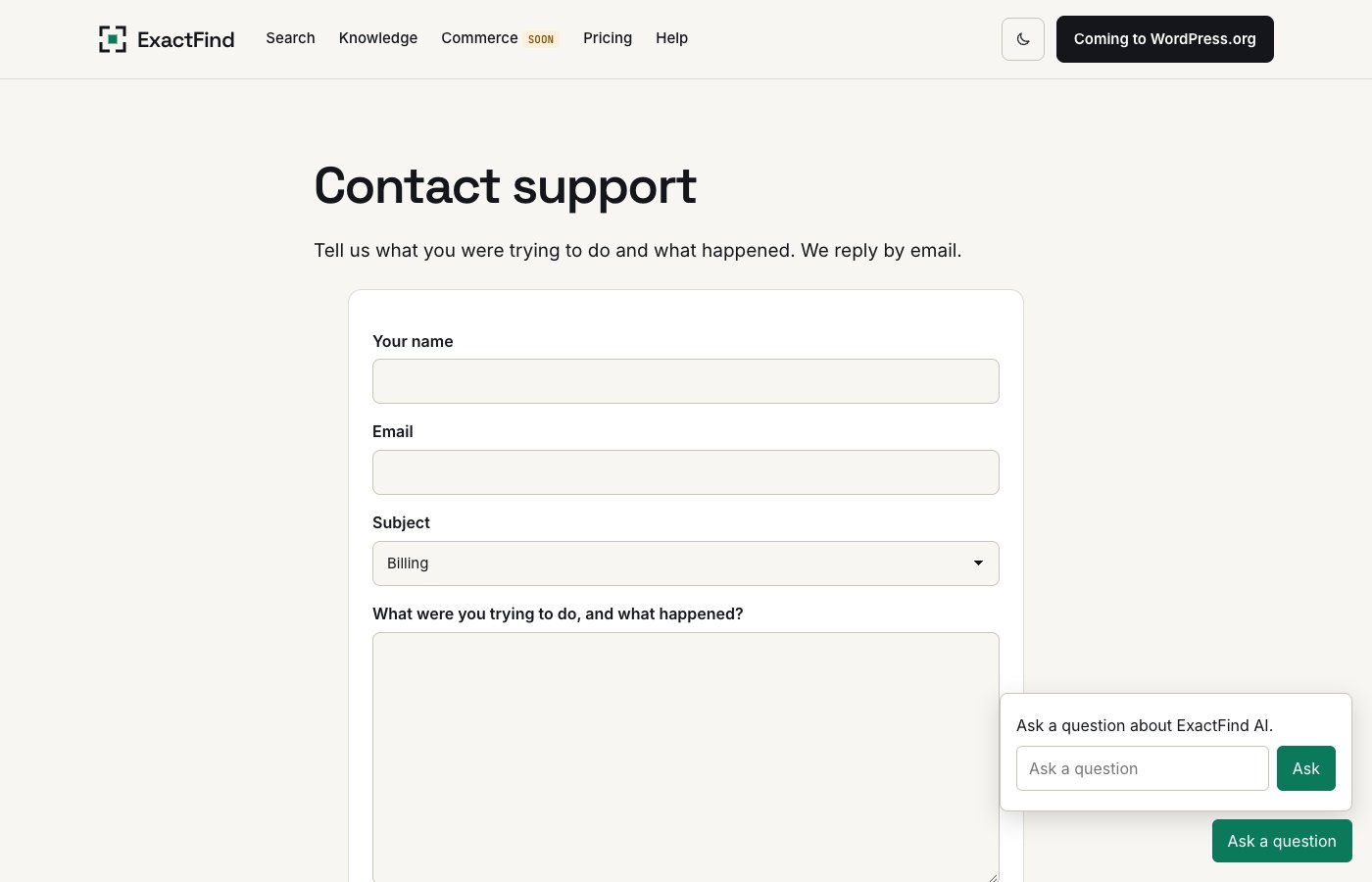
The floating search widget is a button that sits in the corner of your pages and opens the search box. It's off by default.
Turn it on
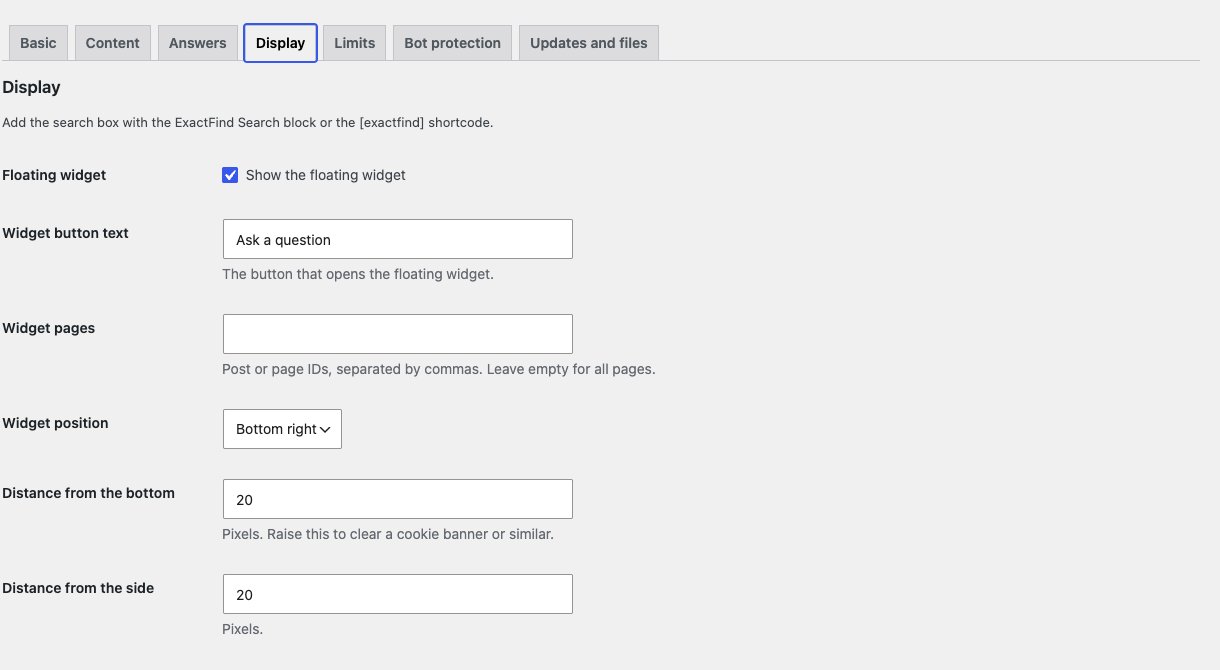
- Go to ExactFind > Settings > Display.
- Tick Show the floating widget.
- Click Save Changes.
Choose where it shows
Widget pages takes post or page IDs, separated by commas. Leave it empty to show the widget on every page.
If you enter IDs, the widget only shows on those posts and pages. It won't show on archives or search results.
Position it
| Setting | Default |
|---|---|
| Widget position | Bottom right. You can also choose bottom left |
| Distance from the bottom | 20 pixels, up to 400 |
| Distance from the side | 20 pixels, up to 200 |
Raise Distance from the bottom to clear a cookie banner or a back-to-top button.
Change the text
Widget button text is on the same tab. The hint and button inside the widget use Hint text and Button text on the Answers tab.
Change the layout
With ExactFind Knowledge, Widget layout on the Knowledge tab sets how chat runs in the widget. See Choose a Chat Layout That Suits Your Page.
Change the colours
The widget uses the same colours as the search box. See Match Your Theme Colours With CSS Variables.
It isn't showing
Clear your page cache first. Then see Search Box Not Showing? Check These Settings.